
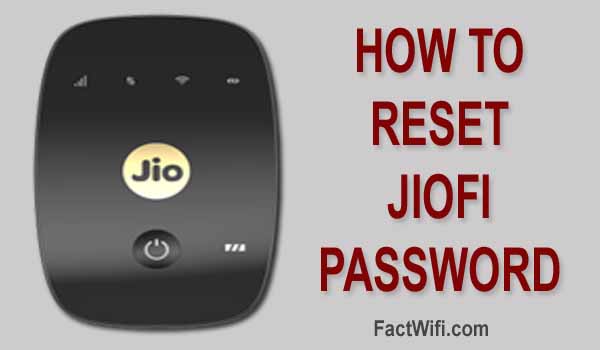
The complete guide for How to reset JioFi password?
Hello Guys, Welcome to this article. If you want to know about how to reset JioFi password or you are searching on the Internet how to reset jioFi password. Then this is the correct article for you.
In this article, we share complete knowledge about how to reset JioFi password. You can easily reset your JioFi password after reading this article. So it may be helpful for you if you really want to know about how to reset Jiofi password.
Before reset JioFi password, you must know, now a day various JioFi devices are available in the market. The JioFi devices are JIoFi 1, JioFi 2, JioFi 3, JioFi 4, JioFi 5 ……. and many more. Therefore, the password resetting process of each JioFi device is maybe the same or it may be different. It depends on the JioFi device modal.
And we have no idea about, you have which modal of JioFi devices are available like JIoFi 1, JioFi 2, JioFI 3, JioFI 4, JioFI 5 or maybe different JioFi devices. But don’t worry, after reading this article you have to easily reset almost all JioFi device password. Because in this article we cover almost all JioFi devices reset process step by step with the screenshots. The screenshot gives you to batter understanding of the JioFi password reset.
If you follow this article carefully, then you will successfully reset JioFi password. And enjoy high-speed Internet again with your JioFi device.
[toc]
What is the JioFi 4G device?
 What is the JioFi device?
Reliance Jio launched the JioFi device. It is a 4G router, which enables you to access hi-speed 4G Internet. You can connect the JioFi router to your Smart Phone, Tablet, and Computer through WiFi. But make sure your Mobile or Computer must have WiFi connectivity features. Because it has no wire to connect it. It is a completely wireless device.
It allows to connect up to 30 devices at a time, but I recommend connect up to 5 devices at a time for better Internet speed. When you increase the devices the Internet speed is decreasing. So we can say that the number of devices is inversely proportional to the Speed of the Internet.
The downloading speed of JioFi device is up to 150 Mbps and uploading speed is up to 50 Mbps. Due to this reason, this device is known as the True Speed 4G Router Device.
How to find JioFi Username and Password?
At first, you have to know each JioFi device has two Usernames and Passwords.
First, Username and Password for the JioFi Wifi Username (SSID) and Password. Which help you to connect your JioFi device to your Smart Phone, Tablets and your Computer. This Username is your JioFi Wifi Name and also it is known as JioFi SSID (service set identifier).
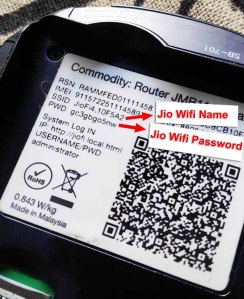
If you don’t know about what is your JIoFi SSID and Password or where are your JioFi Wifi SSID and Password. You simply look at the backside under the battery of your JioFi device. where JioFi Wifi SSID and Password are printed, you look below the screenshot.
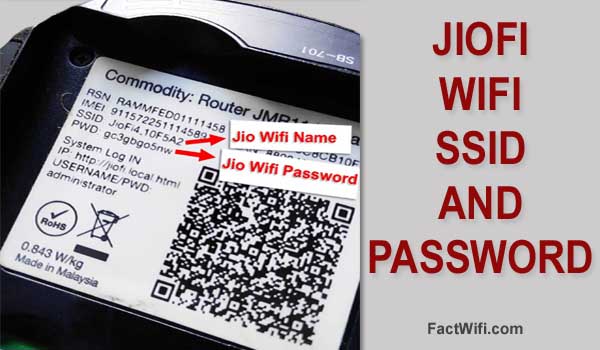 JioFi Wifi SSID and Password.
And Second Username and Password for your JioFi Admin Login. Which helps you to Login your JioFi Admin Panel, where you can change your JioFi SSID and Password, JioFi Admin Username and Password and many more about your JioFi device, which provided by the Reliance Jio Company for JioFi Users.
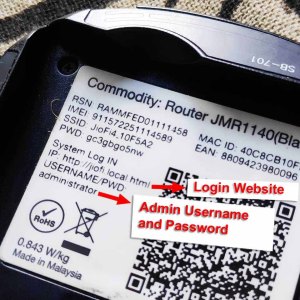
If you have no idea about, where are your JioFi Admin Username and Password, you can see at the same place where JioFi Wifi SSID and Password are Printed. You can see below of the SSID and Password, the JioFi Admin Username and Password are Printed. If you are still confused then no worry see the screenshot below.
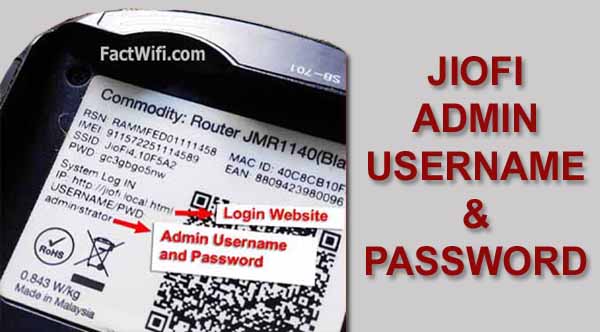 JioFi Admin Username and Password.
What is the cause of reset JioFi Password?
There are many causes of reset JioFi Password they are as follows.
Generally, maybe some time you lost your old or current Jiofi Admin password, and sometimes maybe you lost your JioFi Wifi Password. and you facing the problem related to JioFi Admin Login, or connecting JioFi device with your Smart Phone, Tablet, and your Computer to access the Internet.
The other cause maybe, you are using JioFi Router for a long time and your device is not working properly then, you want to reset your JioFi device. because you think after resetting your JioFi device it may be working properly.
If you lost your JioFi Wifi Password or JioFi Admin Password, you can reset your device in both cases.
After reset JioFi password, JioFi Wifi Password and JioFi Admin Password will be set as the default password.
What is JioFi Default Password?
The default password is a pre-configured password for any device. Same in JioFi device, it is preset by the Reliance Jio Company four JioFi device.
If you have no idea about, what is your JioFi default password or where is your JioFi default password. don’t worry you can find easily your JioFi default password and also Username. The default password and username for any JioFi device are printed at many places they are.
First:- On the backside cover or box of JioFi device. JioFi Wifi SSID and Password are printed.
 JioFi SSID and Password on Jiofi device cover
Second:- On the backside under the battery of JioFi device JioFi Wifi SSID, Admin Username and Password both are printed.
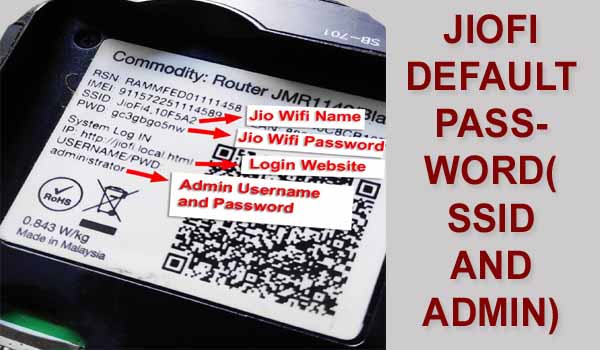 JioFi default password for SSID and Admin
Note:- I already discussed above this article, JioFi have two usernames and password, so you don’t confuse. Both are different from each other one for Wifi Connection and another for Admin Login.
How to reset JioFi password like JioFi2, JioFi 3, JioFi 5 and JioFi 6?
There are simple steps for reset JioFi 2, JioFi 3, JioFi 5 and JioFi 6 passwords. The reset process of all devices (JioFi 2,3,5,6) password is the same. If you have any one of these JioFi devices, then your must-read the steps carefully.
- Turn on your JioFi device.
- Then remove the back cover of your JioFi Device.
- After removing back cover you will see a reset button at the backside of the JioFi device.
- Use a pin or sim ejector tool to press the button.
- Press and hold the button until your JioFI device will be restarting.
- After some time you will see all indicators are blinking and your JioFi router will restart automatically.
- Now, your JioFi router device password is reset successfully and your JioFi device has set to the default username and password automatically.
- After reset JioFi Password you can change the default password by login http://jiofi.local.html this website.
How to reset JioFi password like JioFi2, JioFi 3, JioFi 5 and JioFi 6 with the screenshots?
Step-1: Turn on your JioFi device, simply press down the power button until your device is turn on.
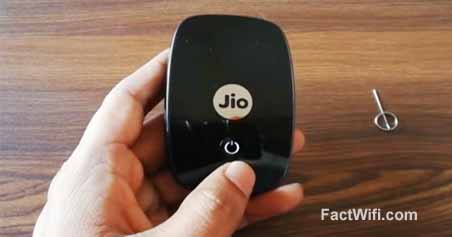
Step-2: Then open or remove the back cover of your JioFi Device.

Step-3: Then you will see a reset button at the backside of the JioFi device, It looks like below screenshot.
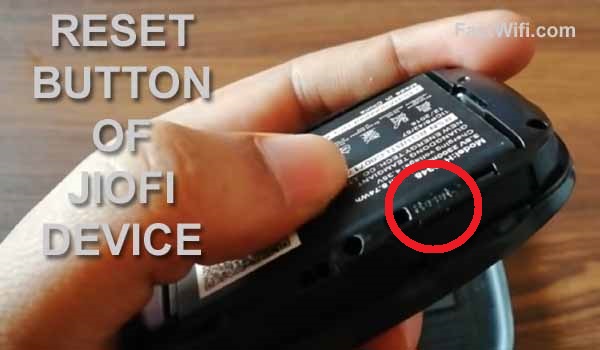
Step-4: Use a pin or sim ejector tool to press the button. see in the below screenshot.
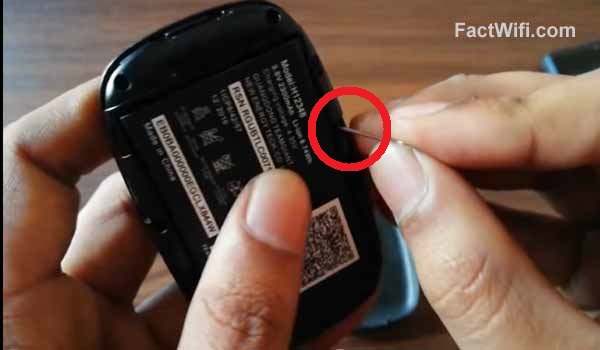
Step-5: Press and hold the button using pin until your JioFI device will be restarting automatically.

Step-6: After some time(within 30 sec – 1 Min) you will see all indicators (lights) are blinking and your JioFi router will restart automatically.

Step-7: Now your JioFi router password is reset successfully and your JioFi device is set to default password automatically for both JioFi wifi Password and JioFi admin password. The default password of the Jiofi device is already mention above in this article.
After resetting JioFi Password you can change the default password simply login your JioFi Admin Panel. And create a new password.
The official website of the JioFi Admin login is http://jiofi.local.html. You can visit this website and easily change your JioFi SSID, Wifi Password, Admin Username, and password. But make sure, before visiting this website your JioFi device is connected with your Smart Phone or Computer, from which you want to visit this website, otherwise you can’t access this site.
Also, Read – How to change JioFi password?
Also, Read – How To Login JioFi Wifi Admin Panel?
How to reset JioFi password for JioFi 4 device?
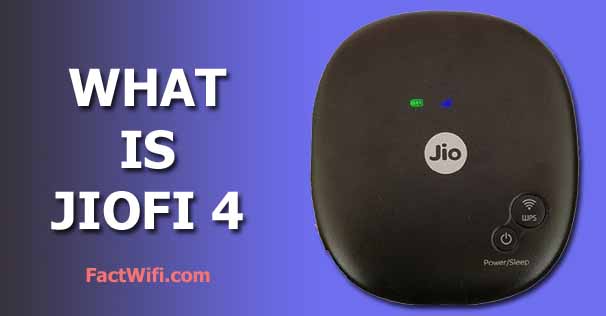
The process of reset JioFi 4 password is completely different compared to JioFi 2,3,5 and JioFi 6 devices. You can easily reset Jiofi 4 password, without removing the back cover of your JioFi 4 device. And you have no needed any pin and something like a pin.
There are simple steps for reset JioFi 4 password, they are as follows:-
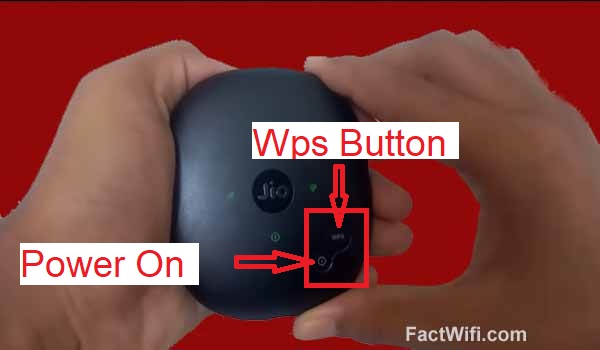
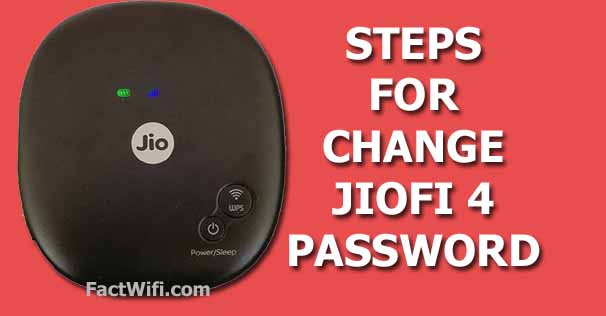
- JioFi 4 device has two buttons one is Power on Button and another one is WPS Button.
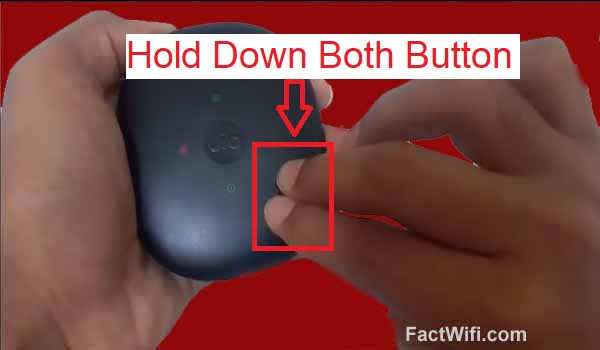
- You have to hold down both buttons simultaneously.
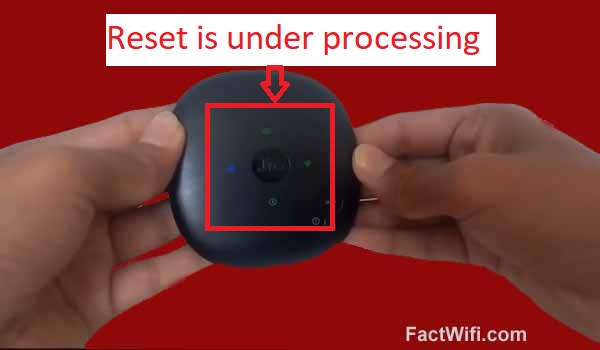
- After a few seconds you will see the blue light is blinking on the Jiofi router, it means Jiofi router is in the resetting process and it will be automatically restarted.
- During this process red, blue, green, light is blinking and it may take some time to complete the reset process, you don’t have to worry about that. after a few seconds, it will be automatically turned on.
- After blinking lights, you will see the network sticks are available it means the Jiofi router is on.
- Finally, the reset Jiofi Password process is successfully done.
After reset JioFi Password, the default Username and Password is set automatically to your JioFi 4 device for both JioFi Wifi and JioFi Admin Login.
Now you can also change your JioFi default password for both Wifi and JioFi admin Login simply visit http://jiofi.local.html and change your JioFi username and password.
How to reset JioFi password for JioFi 4 device with screenshots?
STEP-1: Let’s start reset process of Jiofi 4 password, your JioFi 4 device has two buttons one is Power on Button and another one is WPS Button.
STEP-2: You have to hold down both Power On and WPS buttons simultaneously.
STEP-3: After a few seconds you will see the blue light is blinking on the Jiofi router, it means Jiofi router is in the resetting process and it will be automatically restarted.

STEP-4: During this process red, blue, green, light is blinking and it will be automatically turned on.
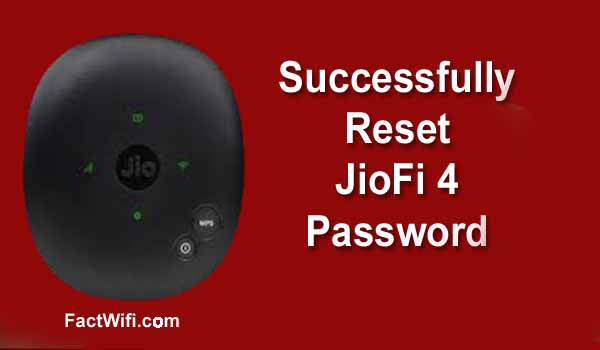
STEP-5: After blinking lights, you will see the network is available it means the Jiofi router is on. And reset Jiofi Password process is successfully done.
For more details about how to reset JioFi password watch this video:
FAQs for how to reset JioFi password?
How many times we can reset the Jiofi password?
There is no limitation to reset Jiofi password. The provision of Jiofi is provided by the reliance Jio company. You can reset Jiofi password many numbers of times. However, we can say that you can reset Jiofi password unlimited times.
What are the JioFi device indicators and their usage?
When you turn on your Jiofi router, then you will see many numbers of indicators available on the front side of JioFi device. All indicators indicate different tasks or works of the JioFi router.
Generally, the JioFI device has 3 Indicators like Wifi, Battery, and Network Signal.
The first one is the WiFi Indicator, it indicates the status of connecting devices, with your JioFi router.
The Second one is Wifi, Battery Indicator. This indicates are JioFi battery status, which indicates Jiofi router is charged or not.
And the last one is Network Indicator by the help of this indicator you can find the network status of your JioFi router on the current location.
How to reset JioFi password if forget?
If you forget your JioFi password and want to reset, you must follow the following steps.
- Turn on your JioFi device.
- Then remove the back cover of your JioFi Device.
- After removing the back cover, you will see a reset button at the backside of the JioFi device.
- Use a pin or sim ejector tool to press the button.
- Press and hold the button until your JioFI device will be restarting.
- After some time you will see all indicators are blinking and your JioFi router will restart automatically.
- Now, your JioFi router device password is reset successfully and your JioFi device has a default password.
How to login to JioFi Router?
If you want to login to your JioFi router admin panel, you must follow the following steps.
- Turn on your JioFi device.
- Connect your JioFi router to your Smart Phone, Tablet or your Computer through WiFi.
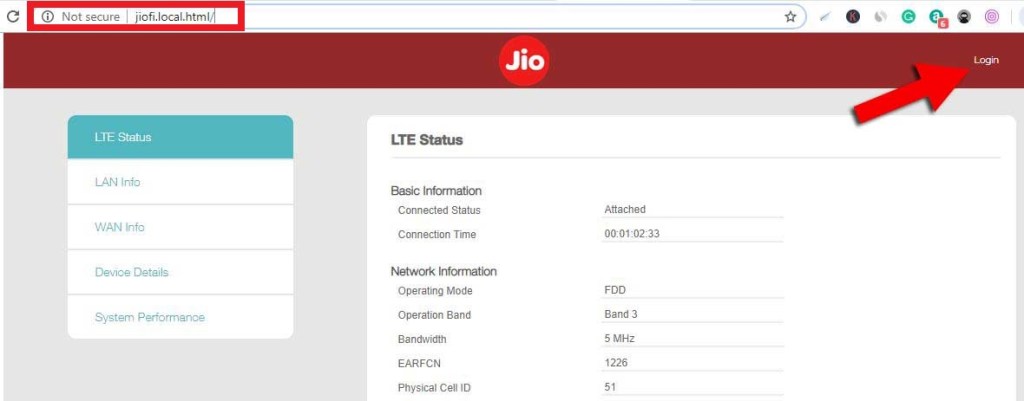
- After connecting, visit http://jiofi.local.html or http://192.168.0.11/ or simply click the Login link. The JioFi Admin Login official website will open.
- Click the login button from JioFi Website. The login button is located at the top right side of the website.
- After clicking the login button. A popup login form will appear, where you enter your JioFi Admin Username and Password. The default Username and Password is “administrator”.
- After filling the login form click the Login button from the bottom of the login form.
- After clicking the login button you successfully log in with JoiWifi Admin Panel.
5. How to change Jiofi password?
If you want to change your JioFi password, then you can follow the following steps which help you to changing your JioFi password.
- Turn on your JioFi device.
- Connect your JioFi router to your Smart Phone, Tablet or your Computer through WiFi.
- After connecting, login JioFi Admin panel by visiting http://jiofi.local.html or http://192.168.0.11/ links.
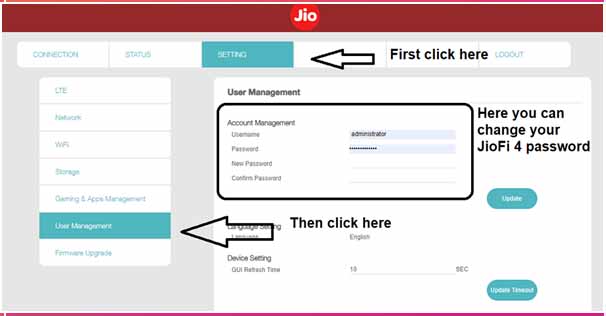
- After login, click Setting option ->User Management.
- Under the User management page, you will see a password changing form, where you enter the new username, old password, new password and finally confirm password.
- After filling the form, click the update button.
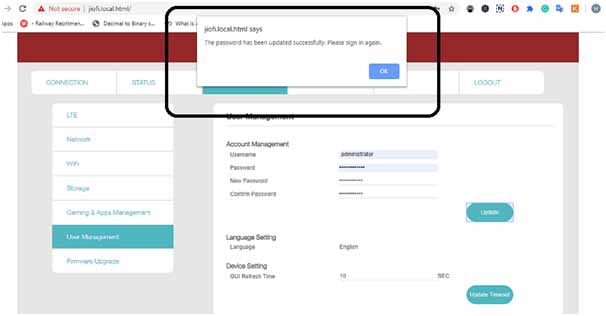
- And finally you will see a success message popup box, where written: “The password has been updated successfully, please sign again.”
Conclusion!
I hope, you will get enough information about How to reset JioFi password. and also get a lot of knowledge about the JioFi router. If you have any queries about how to reset Jiofi password then you can write your queries in the comment box. I will try to answer your all queries.
Thank You for reading how to reset JioFi password.


 technology blog