
Jio Wifi login guide and steps.
Welcome guest in this article. Have you a Jio wifi 4G router? and Are you suffering the problem of Jio wifi login?
If your answer is yes, then this is the correct article for you. This article will help you to solve the problem of Jio Wifi login.
In this article, we share you to solve these issues in a few simple steps with a lot of screenshots, if you follow these steps carefully you can 100% solve the problem related to Jio wifi login.
If you want to know about how to change JioFi 4 Password? Therefore, you can read the article, simply Click Here… to read the article.
What is Jio Wifi 4G Device?
Jio wifi is a portable 4G router device launched by Reliance Industries which offers to connect your 2g, 3g, and 4g mobiles and computer by using wifi and enjoy the hi-speed internet. Jio wifi is portable and small devices which can easily carry in the bag and pockets.
It is used as a personal Wi-Fi hotspot for Home, Office and at any place where you want. Now a day lots of Jio Wifi devices are available. The user can buy this device both Online and Offline. The minimum price of Jio Wifi Device Rs 999 only.
It supports only Jio SIM, other company SIM Cards like Airtel, Vodafone, Idea etc are not supported in Jio wifi device.
[toc]
What are the Features of Jio Wifi Device?
Before buying Jio Wifi device a question will arise in your mind related to Features of Jio Wifi device. So there is the list of features are written below. which help you to understand this device, you should buy or not.
True 4G Speed: It is a true 4G speed device means this device allow you to access hi-speed Internet connectivity. The Downloading Speed of this device is up to 150 MBPS and Uploading Speed is up to 50 MBPS.
Connect up to 32 Devices: This device allows you to connect up to 32 Mobile devices simultaneously, but make sure all devices must have wifi connectivity. We will recommend you to connect up to 10 devices at a time for better Internet Speed. You can also connect Wifi enabled Computer, Laptop, Tablets.
HD Voice and Video Calls: This device allows you to make Hd Voice and Video calls Through your SmartPhone device by the help of JioCall application.
Batter Battery Backup: The Jio Wifi device has 2600 mAh battery which provides a long backup that is up to more than 9 hours when it is fully charged.
Steps for: Jio Wifi Login?
There are some simple steps for Jio Wifi Login if you follow these steps carefully then you can easily solve this problem.
STEP-1: First, you need to power on your Jio Wifi device.
STEP-2: Then you need to connect your Jio wifi device to a computer or mobile through wifi.
STEP-3: After connecting your Jio Wifi device to your computer or mobile you need to open anyone of web browser like Google Chrome, Internet Explorer or maybe open another web browser that you want.
STEP-4: Then visit the Link http://jiofi.local.html or http://192.168.11 The Official Website will we open where you will see a Jio Wifi login button at the top right side of the Website home page. and click the login button.
STEP-5: After click login button a popup of the login form will be shown where you can type your Jio Wifi Username in the User Name field and Password in the Password field. If you have no idea about your Jio Wifi Username and Password the default Username and Password are “administrator” and you can also see Username and Password which is printed on the backside (under the battery) of your Jio Wifi device.
STEP-6: After filling the Jio Wifi login form then click the Login Button that is shown below in the form.
STEP-7: When you click the Login Button you will redirect the Jio Wifi Login Official Website Dashboard where you can do everything about your Jio Wifi Device such as you can Change Jio Wifi Device Password, Username, SSID(service set identifier) and many more about your Jio Wifi Device that is allowed by the Reliance Jio Company for the User.
STEP-8: After your work is done which you want to do after Login, then you can logout your Jio Wifi Admin Dashboard.
Steps for: Jio wifi login with screenshots.
STEP-1:
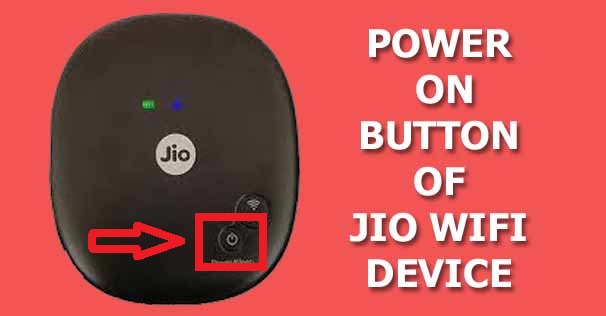
First, you need to power on your Jio Wifi device. The power-on button is present at the front side of Jio Wifi device and it may be a different place for different Jio Wifi devices. you need to press the power-on button and hold until your Jio Wifi device will be on, or you can press and hold the power button to continue 3 sec then you will see some lights are blinking at the front side of Jio Wifi device, then you have to feel your device is ready to use.
STEP-2:
When your Jio Wifi device is on then you need to connect your device to a computer or mobile through wifi, without a connection, you can not do everything, because of Jio wifi router have no display for showing what are you doing. so mobile or computer helps you to log in your Jio wifi device.
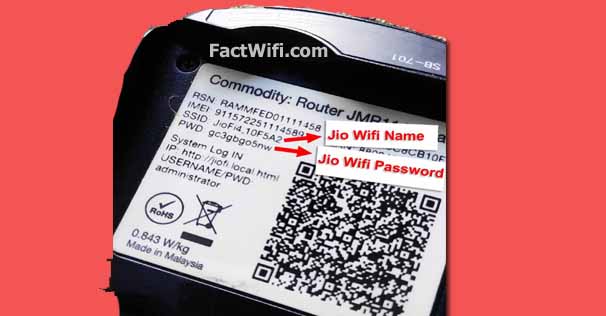
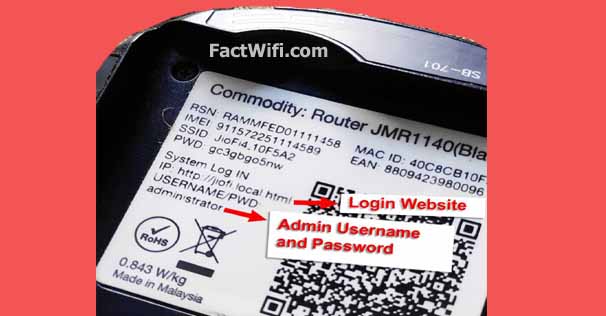
To Connect your Jio wifi to your Computer or Mobile you will need to your Jio Wifi SSID (Service Set Identifier) and Jio wifi password. To find your Jio wifi SSID and Password first open your Jio wifi router Battery under the battery SSID and login Password is printed. you can note down on a page or notepad. below the screenshot for Jio Wifi SSID and Password.
STEP-3 :
After connecting your Jio wifi to your Computer or Mobile, then you need to again a user id and password for Admin Jio wifi login. You can see at the same place where Jio wifi password is written.
Generally, username and password of Jio Wifi device are “administrator” for Jio wifi admin login. you can note down on a page or notepad. below the screenshot for Admin Jio Wifi Login Username and Password.
STEP-4 :
When you get Username and Password then you need to open anyone of Web Browser like Google Chrome, Internet Explorer or you may be open another browser that you want.
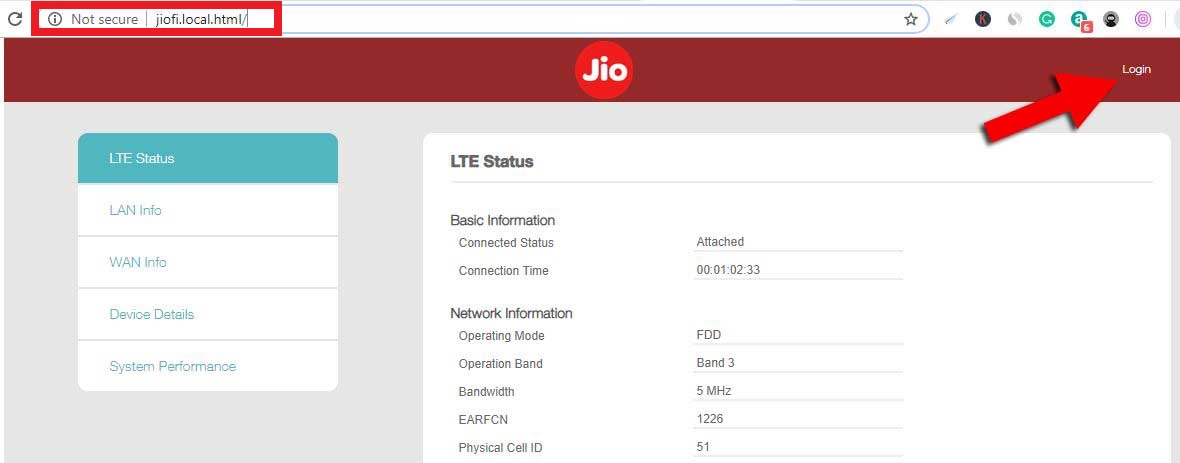
After open Web Browser then you visit the official website http://jiofi.local.html or http://192.168.0.11/ or simply click the Login link.
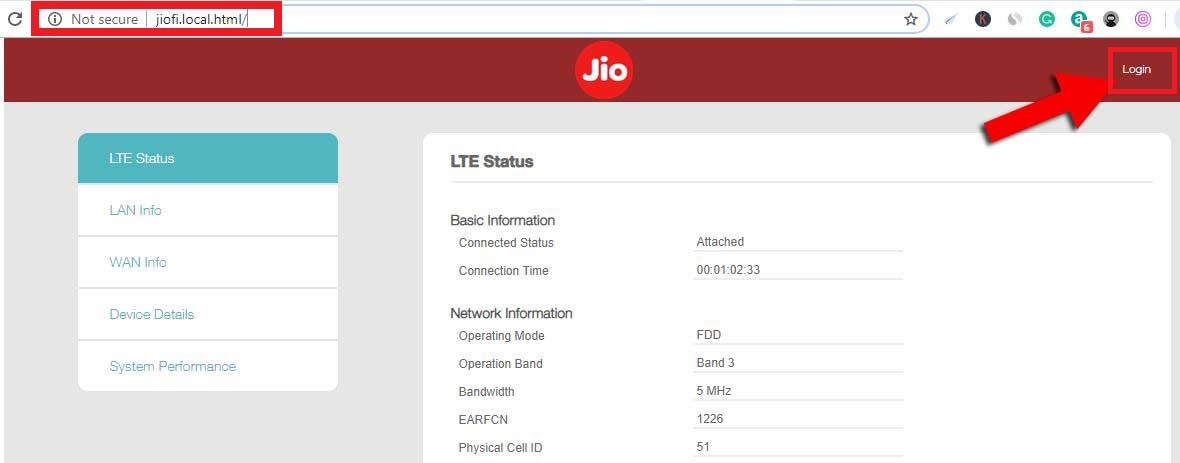
After clicking any one of the given links the Official Website will be open where you will see a login button at the top right side of the Official Website home page. The Official Website homepage looks like this screenshot.
NOTES :
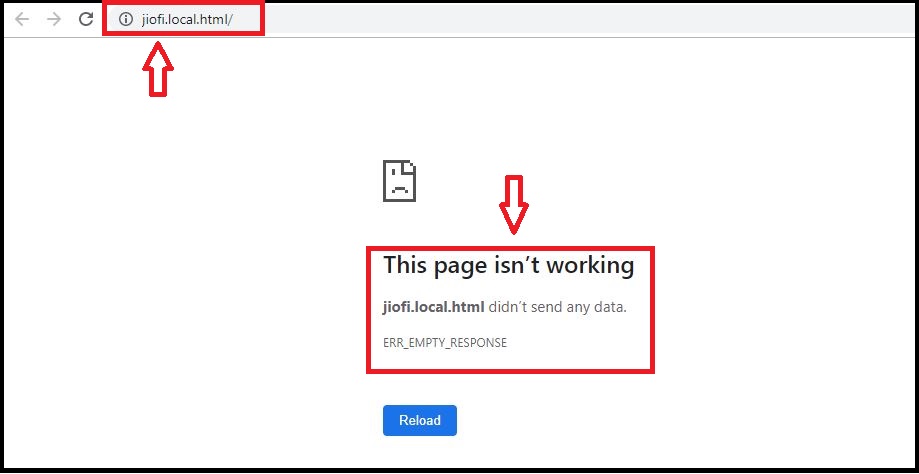
When you try to open the Jio Wifi login Official Website on your Mobile or Computer without connecting Jio Wifi device with your Computer or Mobile you will see an error message on your Web Browser “This page isn’t working”.
You can not open the Official Website without connecting both devices. However, make sure you to connect both devices, then visit the URL. Below given the screenshot looks like this.
STEP-5 :
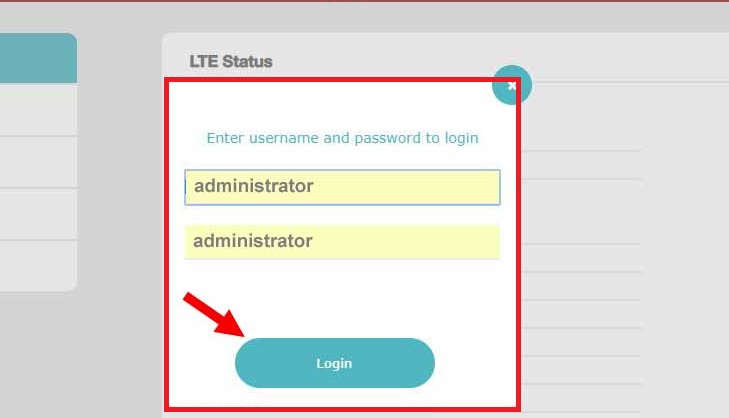
After click login button a login form will appear where you enter Admin Username and Password in the login form field. The default Username and Password is “administrator“.
When you fill the Login Form correctly then you click the Login button, that is shown below the Login Form. If you enter incorrect Username and Password and hit Login Button you will see an error. The Login form looks like this.
STEP-6 :
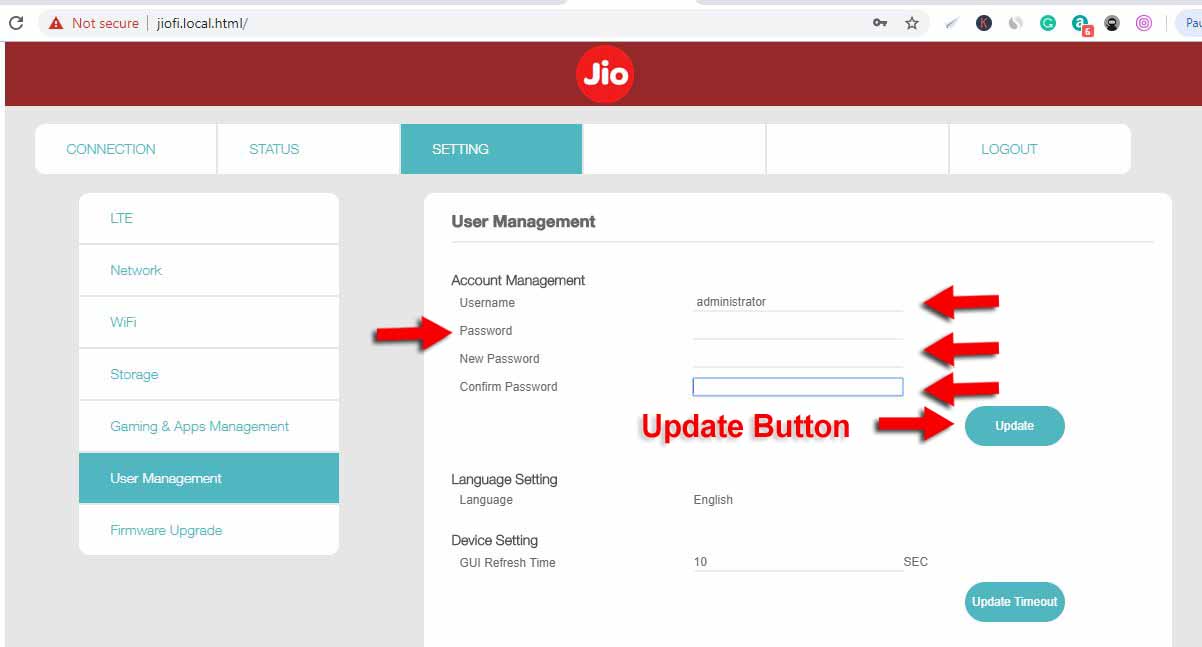
After clicking the login button you successfully log in with Joi Wifi Admin Panel where you can manage the JioFi’ settings which allowed by Reliance Jio Company for Jio WiFi Users.
By default, User Management page will open where you can change and update your Jio wifi Username and Password. The Jio wifi User Management page looks like this screenshot.
STEP-7 :
In Jio Wifi Admin login Panel you have to get a lot of features about your Jio Wifi Devices. And you can perform a lot of changes like Update Jio Wifi Username, and Password and many more changes about your Jio Wifi device.
When the work is done, you can Logout from Jio Wifi Admin Dashboard simply click the Logout Button that is shown at the top right side of the header bar. The screenshot is given below.
STEP-8 :
After clicking Logout Button your Jio wifi Dashboard will be logged out successfully and you will redirect to the Jio wifi login Official Website home page where you log in again with your Jio wifi Admin Panel.
I hope after reading this article you understand the login process. Because we explained in simple language and simple steps. If you have any query about the Jio Wifi Login you can drop a comment, I will try to answer your questions.
FAQs About Jio Wifi?
What is JioFi Login Page Url?
The JioFi Login page URL is http://jiofi.local.html or http://192.168.0.11/ you can simply click on any of the given links to open Jiofi login page.
How do I change my JioFi Username and Password?
- On your Jio Wifi Device.
- Connect Jio Wifi Device to computer or Mobile through Wifi
- Visit http://jiofi.local.html or http://192.168.0.11/ and log in. The Username and password is “administrator”.
- Open User Management page where you can change your JioFi Username and Password.
If you want to know about changing JioFi Username and Password in briefly. you must read the article where we share Complete steps for changing JioFi Username and Password with Screenshot. Simply Click Here.. to read the article.
What is the speed of Jio WiFi?
Reliance Jio Fi is a 4G portable router device which enables you to access high-speed Internet. The downloading speed of JioFi is up to 150 Mbps (Megabytes Per Second) and uploading speeds of Jio Wifi up to 50 Mbps.
Which is latest JioFi device?
The latest JioFi Device is JioFi JMR1040. If you want to buy Jio Wifi device, you can purchase it from Amazon.com and also from Jio.com Official Website.
What are Key Features of JioFi JMR1040?
- High 4G Speed
- Downloading Speeds – 150 Mbps
- Uploading Speeds – 50 Mbps
- JioFi JMR1040 is a Portable and Wireless Device
- 3000 mAh Battery
- Sale Price ₹ 999 only
How many numbers of times login to your Jio Wifi per day?
There is no limitation to log in your Jio Wifi device per day. You can log in your Jio Wifi device many numbers of time within a day, that you want.
Is JioFi device support only Jio SIM?
Yes, JioFi device only supports Jio SIM. So, you can not set another Company SIM Card like Airtel, Vodafone, Idea and many more.
What are the benefits of JioFi?
There are some of benefits points for JioFi.
- 4G Portable device
- High-speed Internet Connectivity.
- Downloading speed 150 Mbps
- Uploading speed 50 Mbps
- It provides a calling feature through the Jio4Gvoice app for any mobile which has wifi support.
- Easy to carry.
Conclusion
Overall guys in the above article, we explain the Jio Wifi Login steps with simple language. If you feel this article is helpful for you, then you can share this article on Social Media.
Thank You!
 technology blog